
Step 1Print the target
before you scan
Download the materials zip, unzip it, then run
RawTiffPrinter.exe and print the TC9.18 target at 1:1 onto
photo paper. Paste an IT8 target into the blank half of the same sheet and
leave a clearly visible white gap.
1Download the materials package
Printer_Profile_Materials.zip — it contains the print target and the printing utility:
printer_target_TC9.18_RGB.tif— the print targetRawTiffPrinter.exe— the printing utility
2Print the target 1:1
Unzip the package, run RawTiffPrinter.exe and print
printer_target_TC9.18_RGB.tif at 1:1. The utility sends the TIFF
to the printer at a fixed scale and position, so nothing is resampled or fitted to
the sheet.
3Print and lay out
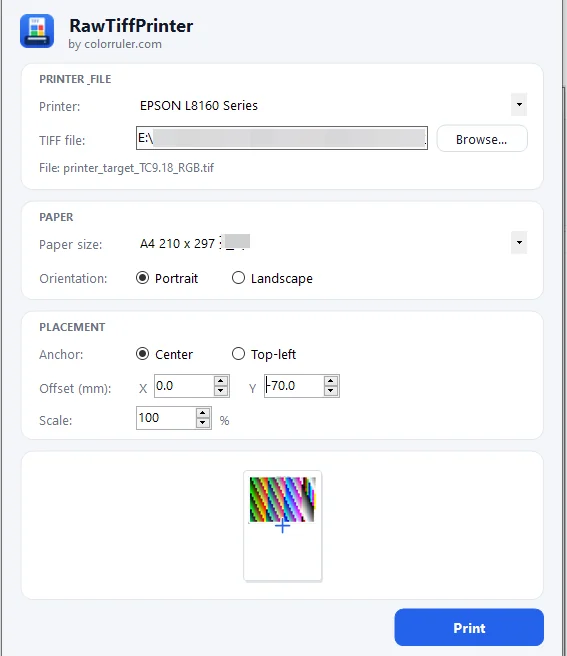
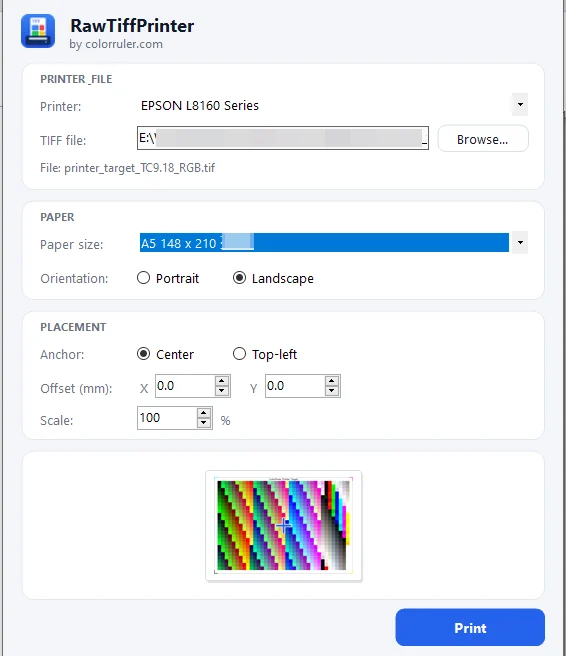
Keep a clearly visible white gap between the printed target and the IT8 target. The two are separated automatically from that gap, so they must not touch or run into the sheet edge.
4Lock the print settings
Step 2Scan the TC9.18 and the IT8 target
one pass
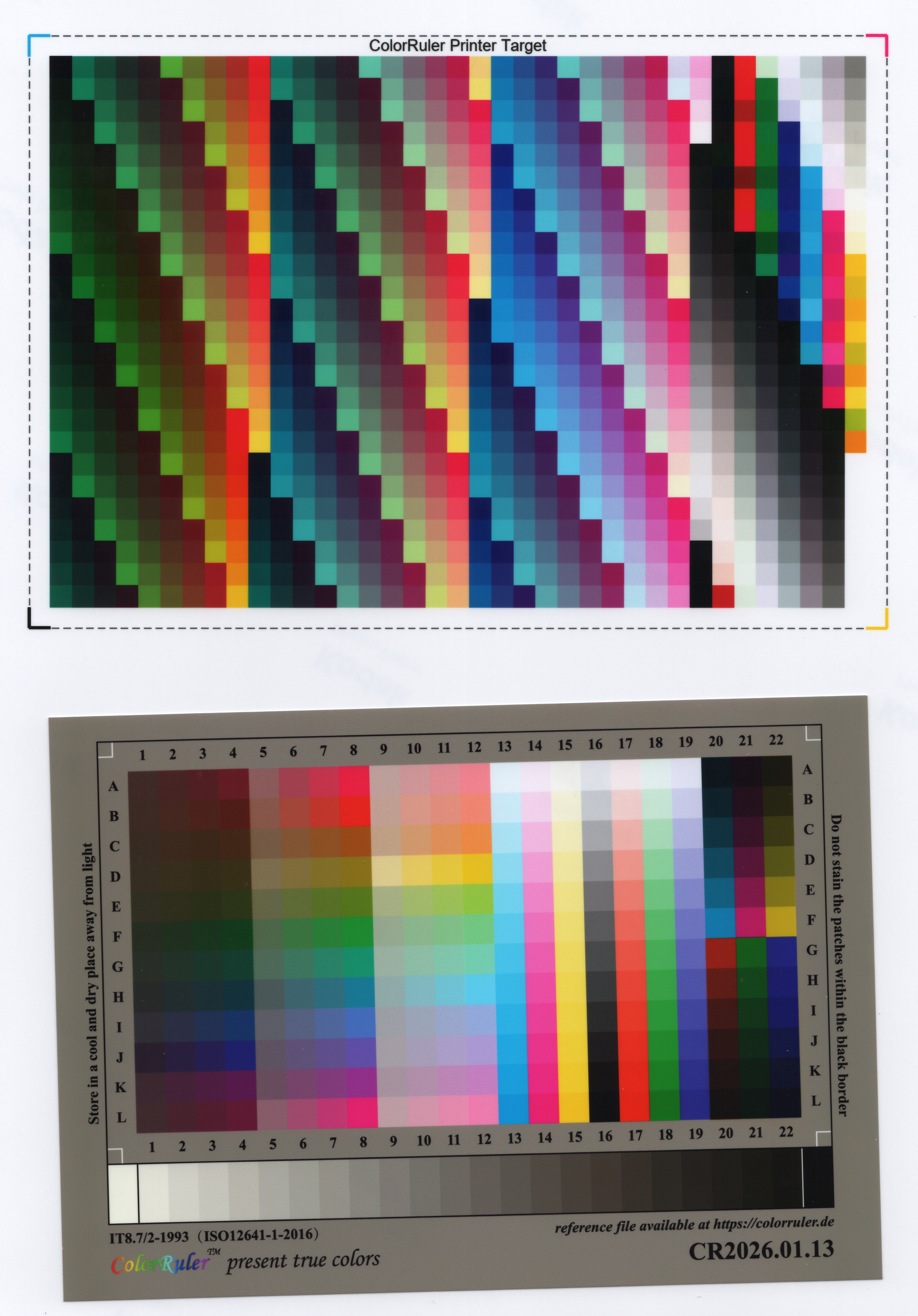
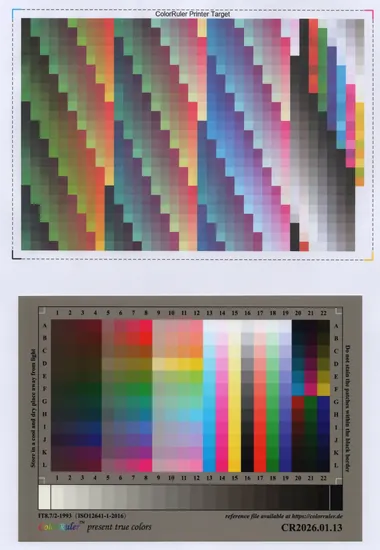
Let the printed target rest for at least an hour. Put the target on
the top half of the platen and a ColorRuler IT8 target on the bottom half, with a
clear white gap, and scan both in one pass — 8-bit, 400 dpi or
more, lossless PNG.
- Let the printed target rest for at least 1 hour so the ink dries completely and the color stabilises.
- Use a scanner whose light source is not aged and has not lost brightness.
- A printer ICC profile does not require a scanner ICC profile to be made beforehand.
- Keep both faces of the scanner glass clean and free of dust.
- Warm the scanner up fully. On an LED scanner you can do this by running preview after preview until the lamp is warm.
- The most important rule: switch off the scanner's color management and every other color correction option!
- 8-bit, 400 dpi or more, lossless PNG is recommended.
Then start scanning.
Step 3Upload the scan
 Sample
Advanced
Step 4Install the printer ICC profile and print
Photoshop
Install the .icm with a right-click, then print from
Photoshop with Photoshop Manages Colors: pick the new profile, use
Relative Colorimetric with black point compensation, and keep the driver
settings (paper type, print quality, color management off) identical to the
target print.
.icm with a right-click, then print from
Photoshop with Photoshop Manages Colors: pick the new profile, use
Relative Colorimetric with black point compensation, and keep the driver
settings (paper type, print quality, color management off) identical to the
target print.The walkthrough below uses Photoshop on Windows. Other applications expose the same settings under different names.
- Install the profile. Right-click the
.icmand choose Install profile — or copy it intoC:\Windows\System32\spool\drivers\color. - Open Photoshop and load the picture you want to print.
- Choose the target printer.
- Print settings: keep them exactly as they were when you printed the target — in particular paper type, print quality and color management switched off (no color adjustment). These three must match the target print.
- Set Color Handling to Photoshop Manages Colors.
- Pick the profile you just generated and installed as the Printer Profile.
- Set Rendering Intent to Relative Colorimetric and tick Black Point Compensation.
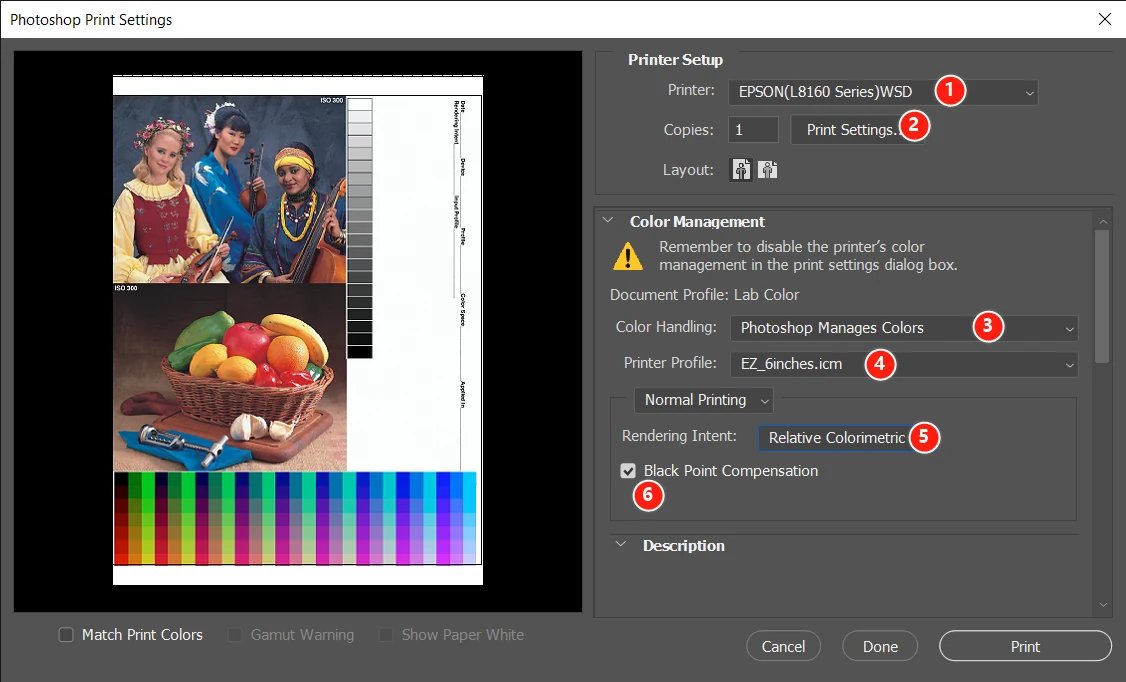
The print now reproduces the true color of the picture.
See the difference a printer ICC profile makes
Both prints come from the same printer, the same paper and the same file — the only difference is the printer ICC profile. Drag the divider to compare:


Frequently asked questions
Can I make a printer ICC profile without a spectrophotometer?
Yes. The IT8 target scanned next to the printed target supplies the reference values, so the scan itself acts as the measuring device. No spectrophotometer or colorimeter is needed — only a flatbed scanner whose lamp has not lost brightness.
Why must printer color management be switched off when printing the target?
The profile has to describe what the printer does with an untouched file. If the driver adjusts colors, the scan measures that adjustment instead of the printer, and the profile stops describing the device. Use the same settings afterwards when you print your work.
Which paper should I print the target on?
The same photo paper you will print your work on, with the same print settings. A profile built on glossy paper does not transfer to matte paper.
Do I need a separate profile for another paper or ink set?
Yes. One profile covers exactly one printer, one ink set, one paper type and one group of print settings. Change any of the four and the profile no longer applies.
What scan resolution and format do you recommend?
8-bit, 400 dpi or more, saved as a lossless PNG or TIFF, with the scanner's own color management switched off. Scan the printed target and the IT8 target in one pass, with a clearly visible white gap between them.